Hybrid meeting user manual.
A complete operator's reference for the example system in the source guide: one audio-enabled Zoom presenter, a PA and room microphones, optional silent camera/share clients, and one or two room displays.
Governing principles.
Hybrid combines strengths—and inherits constraints
Online conferencing reduces travel, shows name tags, can create transcripts, supports shared presentations, and lets participants ask questions at any time. In-person meetings provide body language, personal interaction, and deeper connection. Hybrid meetings aim to bridge those experiences.
Audio is the participation channel
Audio quality determines whether remote participants can follow and contribute. Video is secondary. Every design choice in this manual protects the path between in-room voices and online voices.
Every in-room speaker uses a microphone. Wireless microphones can be carried to seated attendees; otherwise, attendees approach a fixed microphone. The chair recognizes speakers before they talk.
One source prevents competing sound paths
The main room hears the online meeting through one PA. One conferencing laptop owns audio. Every other laptop or phone joins with audio off.
Choose the room architecture.
One conferencing laptop, one PA source, room microphones, and adequate Wi-Fi or a hotspot. Place a capture microphone—or the laptop—close to the loudspeaker so the remote room receives the room mix.
Add a separate laptop for PowerPoint or browser sharing and connect the Zoom presenter to the main projector over HDMI with display audio off.
Add silent iPhone or Android camera clients, an optional Continuity Camera view, and a silent client for a second projector.
The source diagram shows the Zoom presenter streaming to YouTube. Keep that as an optional output for groups that already operate a stream; it does not change the one-audio-device rule.
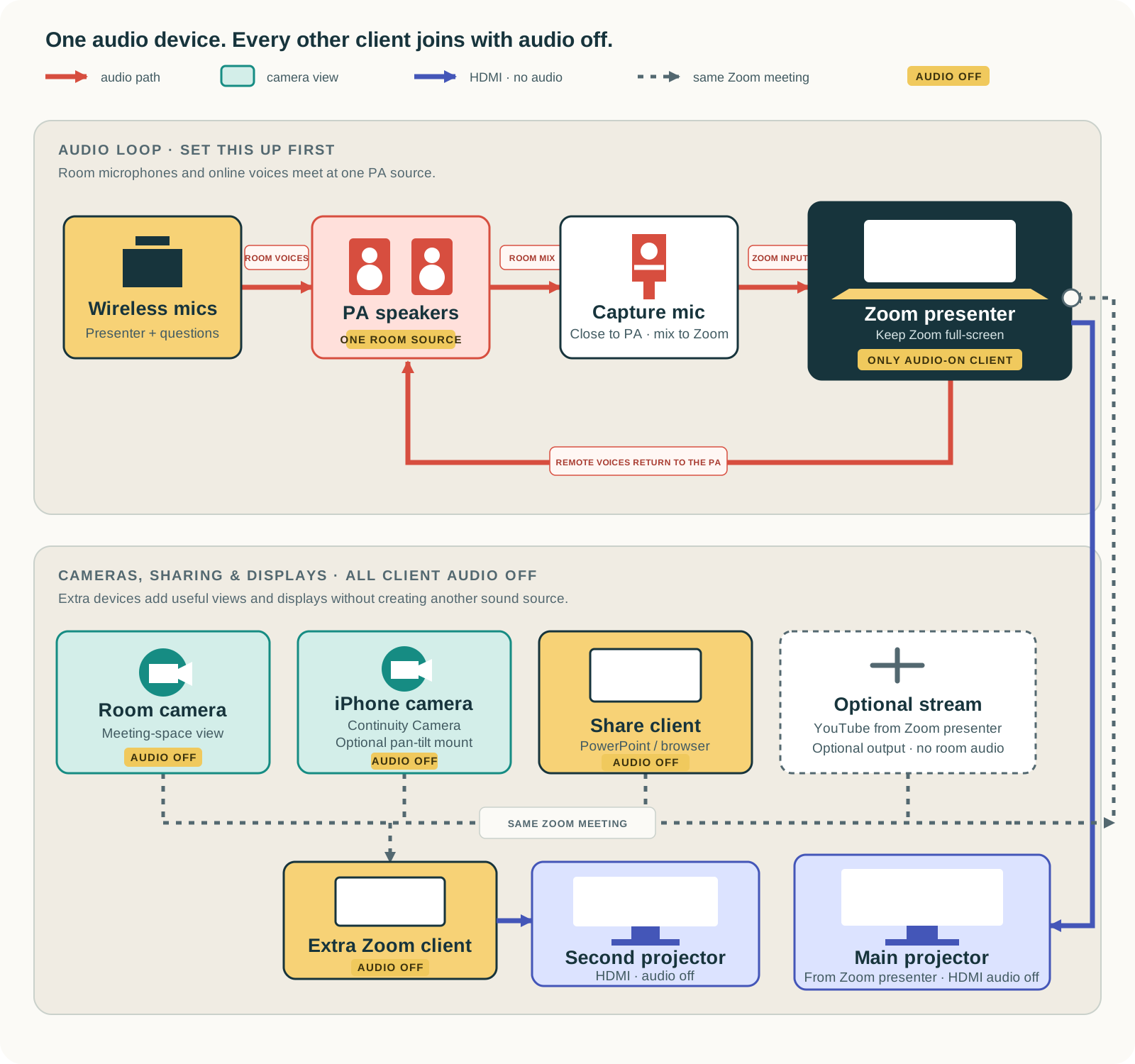
Read a text version of the diagram
- Wireless microphones for the presenter and audience questions feed the PA speaker or speakers.
- A capture microphone sits close to the PA and feeds the Zoom presenter's audio input; when there is no separate microphone, the laptop can sit close to the loudspeaker.
- The Zoom presenter's audio output feeds the PA, so people in the room hear online participants.
- The Zoom presenter is the only conference client with room audio enabled and keeps the Zoom screen full-screen.
- A separate laptop can share PowerPoint or browser content with its audio off.
- Phones can provide a meeting-space view or a participant view. An iPhone can use Continuity Camera and an optional motorized mount. Phone audio stays off.
- The Zoom presenter drives the main projector by HDMI with no audio. A separate silent Zoom client can drive a second projector the same way.
- The source diagram includes optional streaming from the Zoom presenter to YouTube.
Route the audio.
Room voices to online participants
- The presenter or attendee speaks into a wireless or fixed microphone.
- The PA carries that voice clearly through the room's loudspeaker source.
- A separate capture microphone sits directly in front of or close to the loudspeaker and feeds the Zoom presenter.
- If there is no separate capture microphone, place the conferencing laptop close to the loudspeaker so that source dominates background noise.
Online voices to the room
- The Zoom presenter receives remote participants through the online conference.
- The presenter's audio output connects to the PA.
- The room hears online voices through the same loudspeaker source used for the meeting mix.
Cable path in the source example
The example uses a USB-C adapter to connect the Zoom presenter to the PA over 3.5 mm audio output and to a microphone over XLR input.
The source notes that smartphones can also make good microphones because many include built-in noise cancellation. Use them as carefully managed clients and avoid opening another room sound source.
Add cameras and views.
Use multiple clients for useful context
When devices are available, multiple clients can join the same conference to show featured speakers and meeting attendees from different views.
- Meeting-space view: a phone frames the overall room and joins with no audio.
- Participant view: an iPhone on a motorized mount can frame audience members.
- Continuity Camera: Apple Macs can use an iPhone as a webcam through Apple's Continuity Camera feature.
- Older phones: Apple or Android smartphones can join over Wi-Fi as additional cameras.
Spotlight or select the camera that remote attendees should see. Keep every camera phone's conferencing audio off.
Share content and drive displays.
Separate work by device when possible
The source guide recommends separate laptops for the main in-room presentation, any additional meeting screens, and presenters who share content.
Main projector
Connect the Zoom presenter to the main screen or projector using HDMI. Disable audio on the HDMI path and keep the Zoom view full-screen.
Presentation sharing
Use a separate Zoom client to share PowerPoint or browser content. This computer is a content source, not a room sound source.
Second projector
A separate Zoom client can drive a second projector over HDMI. Keep both the client's conference audio and HDMI audio off.
Run the meeting.
Scroll sideways to see chair actions
| Moment | Operator action | Chair / presenter action |
|---|---|---|
| Before doors open | Confirm Wi-Fi, one audio-enabled Zoom presenter, PA input/output, microphones, display audio off, and silent extra clients. | Know where presenters and audience members will speak. |
| At the opening | Watch the online room for a remote audio confirmation. | Explain that every in-room speaker must wait to be recognized and use a microphone. |
| During reports | Select the useful camera view and monitor the shared presentation. | Keep the microphone with the current speaker. |
| During questions | Keep the online participant view visible and listen for remote questions. | Bring a wireless mic to the attendee or direct them to the fixed mic. |
| When switching views | Spotlight or select the intended camera without enabling its audio. | Pause long enough for online attendees to follow the change. |
| At the close | End the conference or optional stream from the designated presenter device. | Confirm that online participants have heard the final action or adjournment. |
Troubleshoot from the signal path.
Online participants cannot hear someone in the room
Put the speaker on a room microphone. Confirm that the PA carries that voice, then confirm that the capture microphone or nearby conferencing laptop receives the PA mix.
The room cannot hear an online participant
Confirm that the Zoom presenter—not a silent camera or sharing client—owns audio. Check the presenter's audio output to the PA and the PA's volume.
The room hears echo or competing audio
Inspect every additional laptop and phone. Their conferencing microphones and speakers should be off. Keep HDMI audio off on projector connections.
Remote participants hear too much background noise
Move the capture microphone directly in front of or closer to the PA loudspeaker. If the laptop is the capture device, place it close enough that the loudspeaker dominates other room noise.
The connection is unstable
Check the venue's Wi-Fi coverage. Move to the prepared hotspot if the venue network is inadequate; the source guide notes that a 5G smartphone may provide one.
Remote participants need a better view
Join an older iPhone or Android phone over Wi-Fi as a silent camera, then spotlight or select it. On a Mac, an iPhone can also serve as a webcam through Continuity Camera.
The second projector causes sound problems
Make sure its Zoom client has audio off and its HDMI connection carries no audio. The second display should add a view, never a sound source.
Equipment references.
These are the examples linked from the source guide. They are preserved as references, not presented as endorsements or current purchasing recommendations.
Scroll sideways to see every source link
| Purpose | Source example |
|---|---|
| Wireless microphones | GLXD4 Vocal Dual Channel Wireless Microphone System on eBay |
| Capture microphone near the speakers | Shure SM48 microphone on Amazon |
| Presenter-to-PA and microphone cable path | USB-C to 3.5 mm headphone and XLR microphone adapter on Amazon |
| Controllable phone camera angle | Pan-and-tilt motorized camera mount on Amazon |
Primary source: San Diego Dem Clubs · Hybrid Meetings. This manual reorganizes and clarifies that source; it does not replace venue-specific testing or the documentation for your conferencing platform and hardware.